 Replace webpage images
Preview new images in the real page layout
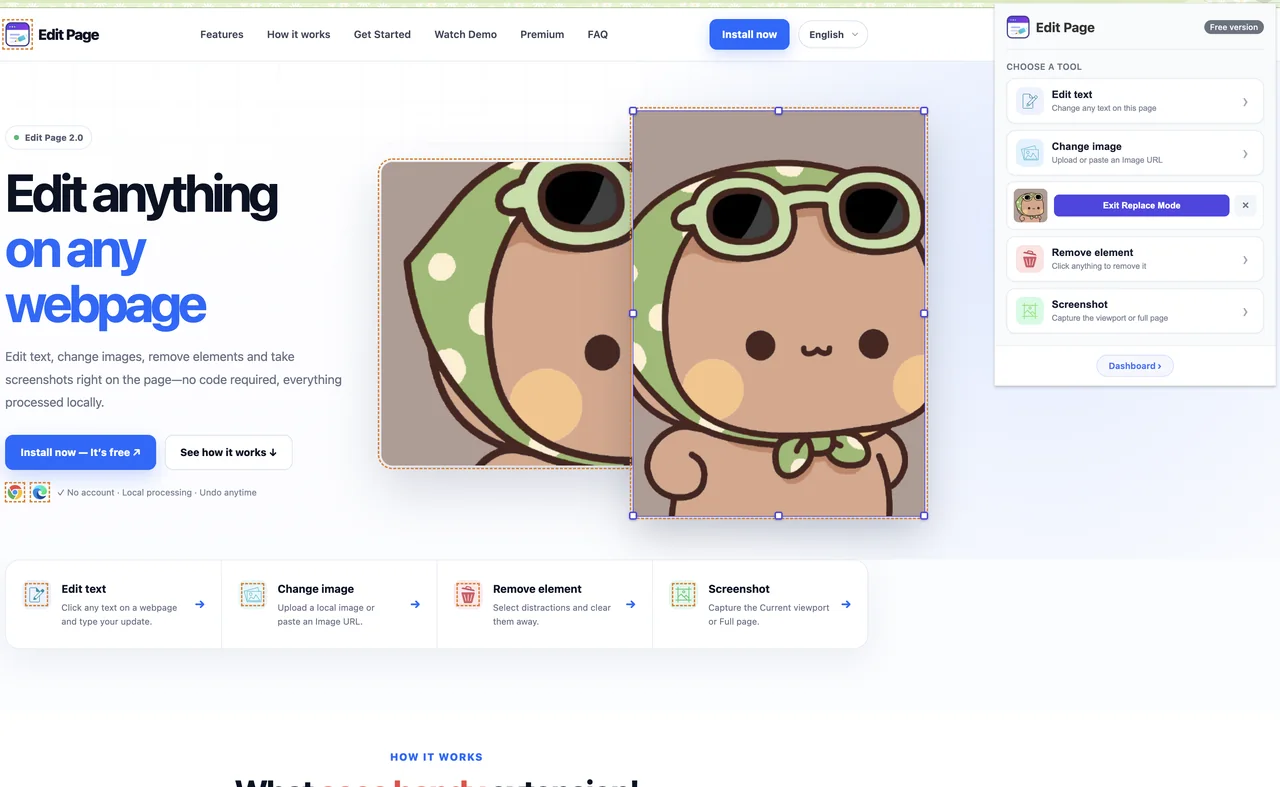
Replace a visible image with a local file or image URL and see the result immediately. It is a quick way to validate campaign art, product photos, avatars, and hero graphics.
Chrome and Microsoft Edge · Start free · No sign-up required
Test visuals before implementation
Upload or paste a URL
Use an image from your computer or test an image already hosted online.
Keep the existing layout
Preview the replacement inside the page’s current size, spacing, and surrounding content.
Work locally
The replacement is only a browser preview. Edit Page does not modify the source website.
Import an image, control its fit, then resize it on the page
Change image is more than a one-click swap. You can import a local file or Image URL, choose how replacements affect layout, and adjust a replaced image with handles directly on the webpage.
Use the source that fits your workflow
Upload an image from your computer or paste an http or https Image URL. Edit Page checks that a URL can load as an image before it saves the source or shows a preview.
- Failed URLs are rejected instead of leaving a broken image in the preview.
- The URL may fail when the file is missing, is not an image, times out, or the host blocks cross-site access.
- One import counts once, even when you use that imported image on several elements.
Choose whether the page keeps its frame or follows the new image
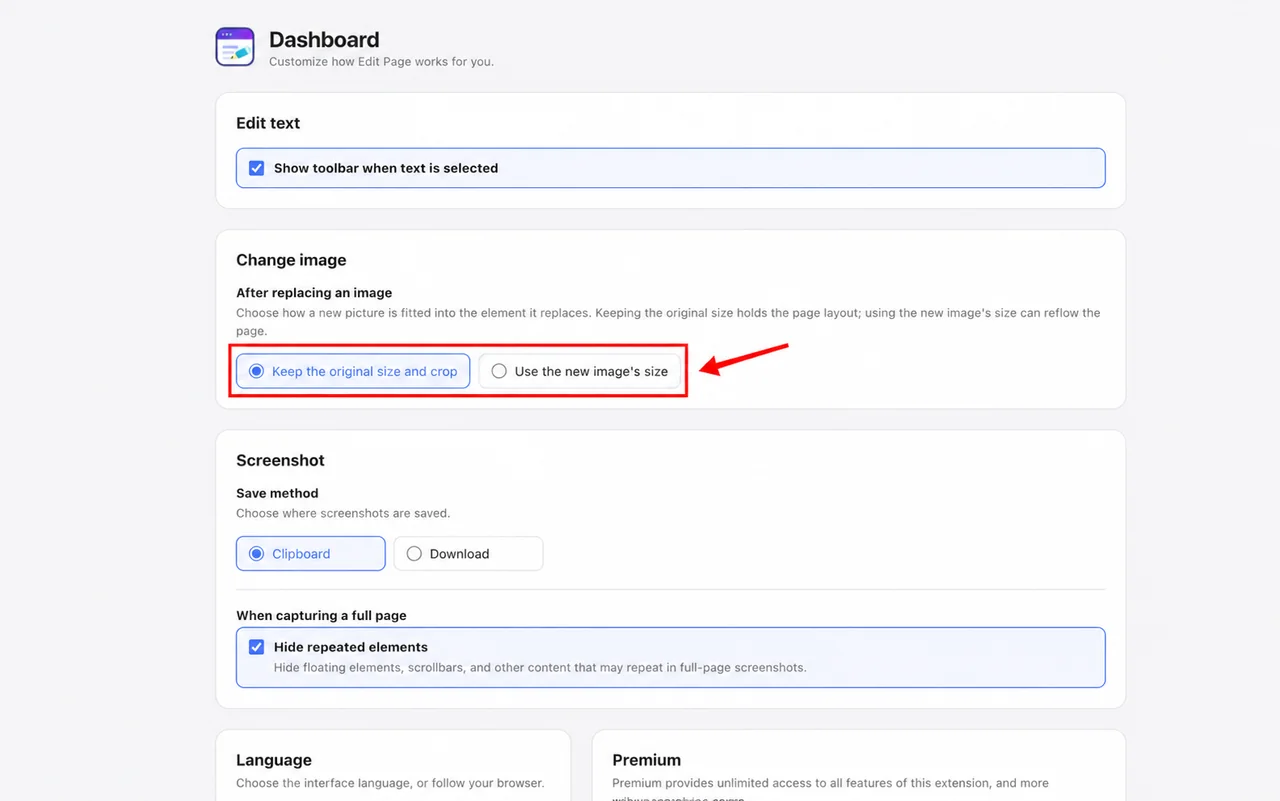
Settings → Change image controls the default behavior for every replacement. Pick the layout-preserving option for quick mockups, or let the replacement use its own dimensions when the new asset should reshape the page.
- Keep the original size and crop preserves the original box and uses a cover-style crop.
- Use the new image’s size applies the replacement image’s own dimensions and may reflow the page.
- The same replacement flow works for regular images and selectable background images.
Drag eight handles without losing a clean Undo history
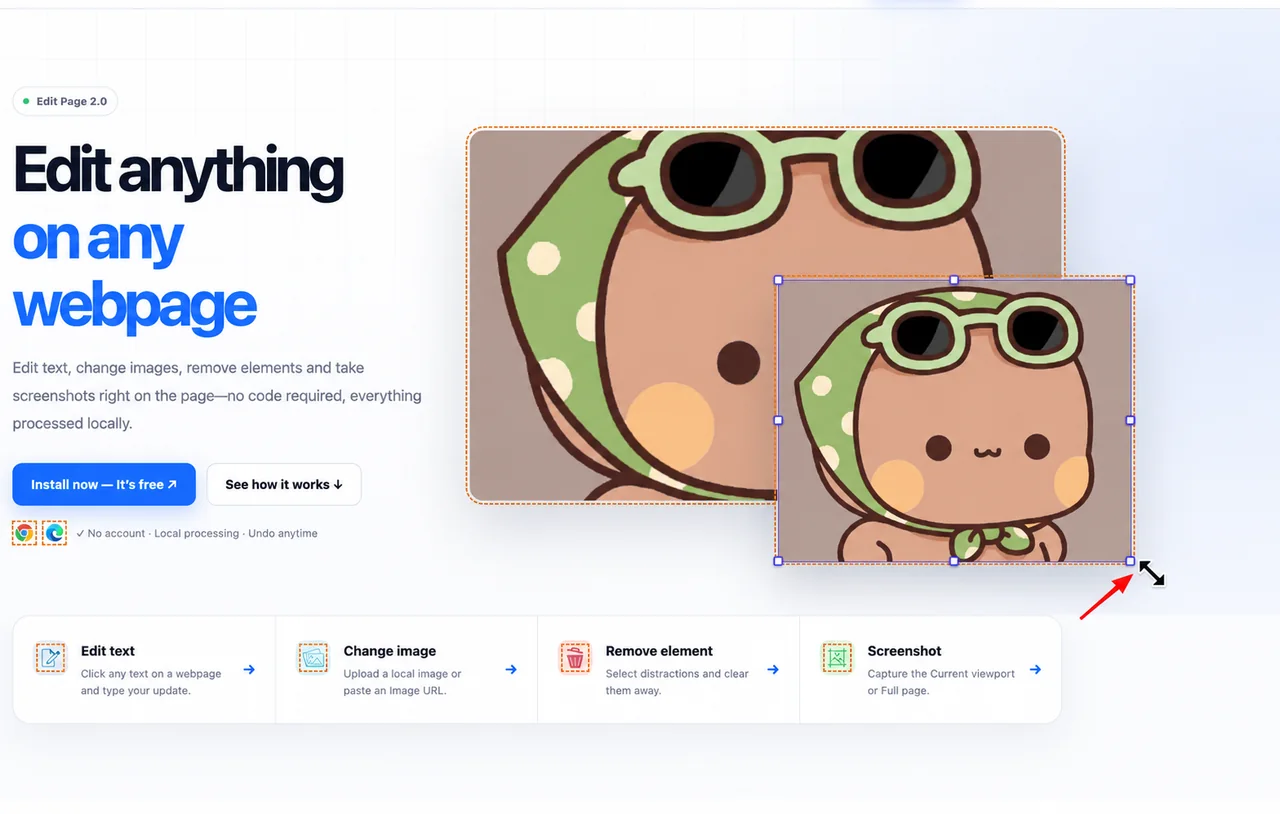
Immediately after a successful replacement, the changed element receives handles on four corners and four edges. The overlay follows the element as the page scrolls or its size changes.
- Corner drags keep the aspect ratio by default; edge drags change one direction.
- Hold Alt to reverse the current rule, or press Esc while dragging to cancel and restore the starting size.
- One completed drag becomes one Undo step. Cancelled or unchanged drags are not added to history.
Edits happen in your current browser tab. Edit Page does not upload webpage content, and a refresh restores the original.
How to replace an image
- 1Step 1
Choose Change image
Open Edit Page on the target webpage and select the image replacement tool.
- 2Step 2
Select an image
Click the image on the page, then upload a local file or paste a direct image URL.
- 3Step 3
Compare the result
Review crop and composition in context. Undo the change or refresh whenever you are done.
Common image preview workflows
Campaign approvals
Place a proposed banner or campaign visual into the live destination page.
E-commerce merchandising
Compare product photography and see how different crops behave in a product grid.
Portfolio mockups
Create credible before-and-after visuals without rebuilding the page in a design tool.
Image replacement tips
- For the most realistic result, use an image with a similar aspect ratio to the original.
- Some images are backgrounds rather than regular image elements and may not be selectable.
- Protected browser pages do not allow extension tools to run.
Image replacement FAQ
Can I upload an image from my computer?
Yes. Choose a local image file, or use a direct image URL when the asset is already online.
Will the website owner see my replacement?
No. The preview stays in your current browser tab and does not update the website server.
Why does an image look cropped?
Keep the original size and crop preserves the existing box and fills it with the new image. Choose Use the new image’s size in Settings when you want the page to use the replacement image’s own dimensions.
Can I resize an image after replacing it?
Yes. A replaced image gets eight resize handles. Drag a corner to keep its aspect ratio, drag an edge to change one direction, or hold Alt to reverse that behavior.
Does resizing use another free replacement?
No. The free allowance is counted when you import a local image or Image URL. Resizing, Undo, and Redo do not consume it.
Explore other Edit Page tools



Ready to edit the web your way?
Install the extension and start on any regular webpage.