Install and open
Choose your browser. After installation, pin Edit Page to the toolbar so it is always easy to open.


- 1Complete the installation in your browser store
- 2Find Edit Page in the extensions menu and pin it to the toolbar
- 3Open a regular webpage and select the Edit Page icon
Open the extensions menu in your browser, then select the pin next to Edit Page. Browser internal pages and extension store pages normally prevent extensions from running.
Finish the initial setup
Open the Dashboard before your first use. These preferences control where screenshots go and how the extension behaves.
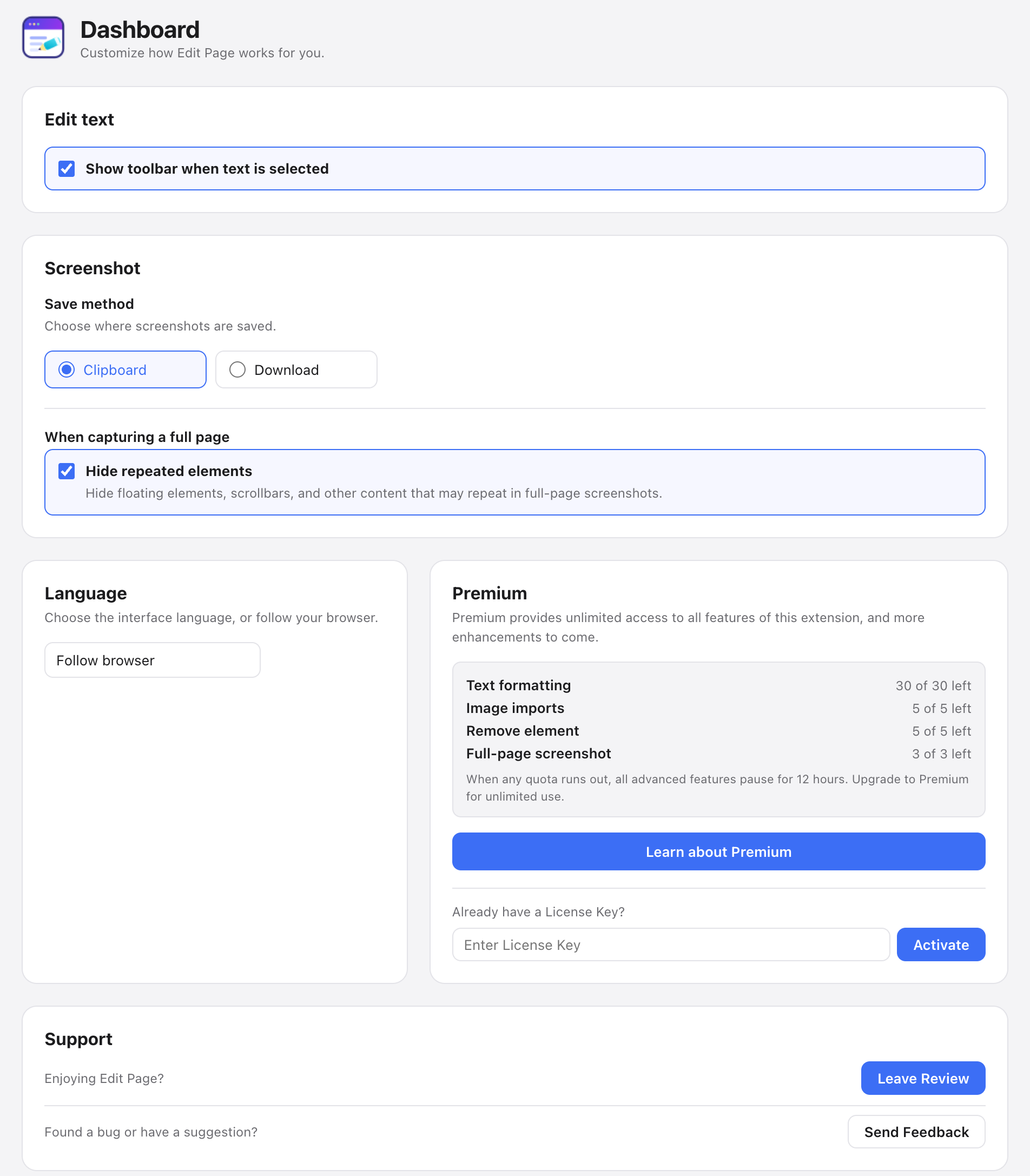
Interface language
Choose the language you want to use inside the extension.
Screenshot destination
Copy screenshots to the Clipboard or download them to your computer.
Full page capture
Configure the full-page screenshot options for the way you work.
Your settings are saved in the current browser, so you do not need to configure them every time.
Make your first edit
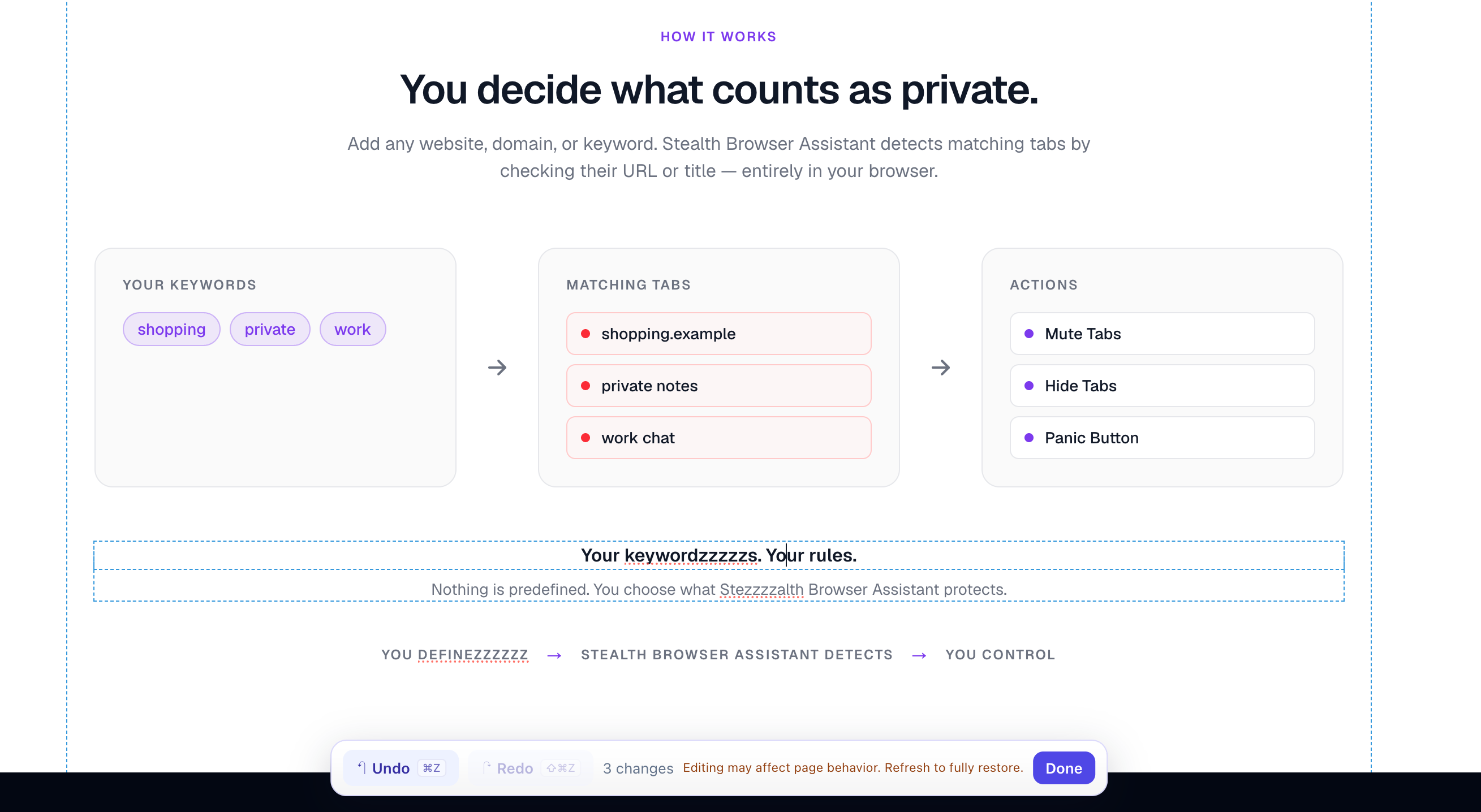
Start by changing one piece of text. It is the quickest way to confirm that everything is working.
- 1
Open the tool
Select the extension icon, then choose Edit text.
- 2
Select some text
Click any text on the webpage. The cursor appears directly in the content.
- 3
Type directly
Delete or enter text just like a document. There is no confirmation dialog.
- 4
Finish editing
Select Done in the bottom bar. Refresh the webpage to restore the original content.
Edit Page changes only the page currently shown in your browser. It never changes the original data on the website server.
What to know before editing
Websites use different page structures and security policies. These notes explain why an edit may not work—and what you can try next.
Changes are local to the current page
Refreshing, closing the tab, or reopening the website restores the original content.
Websites may re-render content
Some sites automatically refresh parts of a page, which can restore edited text or images.
Image URLs must be directly accessible
Use an image address beginning with http or https. Some websites block images from external sources.
Some pages cannot run extensions
Browser security prevents code injection on protected pages such as the Chrome Web Store and browser settings, so editing cannot be guaranteed everywhere.
Use the keyboard to reach linked text
If selecting the target text immediately opens a link, place the cursor in nearby editable text first, then use the arrow keys to move it into the linked text.
On account, payment, or form pages, never treat a visual edit as a change to the underlying data.
Choose the right screenshot mode
Edit Page supports Current viewport and Full page captures. First choose Clipboard or Download in the Dashboard.
Current viewport
Captures only the area currently visible in the browser. It is fast and useful for sharing a specific section or state.
Full page
Processes the page while scrolling and creates one complete image—useful for articles, landing pages, and design references.
- ✓Do not scroll or switch tabs during a full-page capture
- ✓Scroll through the page once so lazy-loaded images can appear
- ✓Very long pages require more processing time
- ✓Sticky navigation and floating elements may repeat in a long capture
Troubleshooting
If something does not work as expected, start with these checks.
Nothing happens when I select the extension+
Make sure the current tab is a regular http or https webpage, then refresh and try again. Browser settings and extension stores are unsupported.
I cannot select text or an element+
The content may be inside an iframe or protected area. Try content in the main page to confirm that the tool works.
A replaced image changes back+
The website may be re-rendering that section. Wait for the page to finish loading, then replace it again.
The screenshot is not in my clipboard+
Check the destination in the Dashboard and make sure Clipboard permission is allowed, or switch to Download.
Images are missing from a full-page capture+
Scroll to the bottom first so lazy-loaded content appears, then return to the top and start the capture.
Features behave unexpectedly after an update+
Refresh the current webpage. If the issue remains, restart the browser and confirm that the extension is up to date.